


To export LinkedIn contacts, open Settings and Privacy, go to Data privacy, click Get a copy of your data, tick Connections, and request the archive. LinkedIn emails you a download link, often within about ten minutes, and the file arrives as a CSV of your first-degree connections. The whole thing is free and takes roughly ten minutes of attention.
What you get back is thinner than most people expect. The file carries names, companies, titles and connect dates, plus the email addresses your connections agreed to share. There are no phone numbers, and Sales Navigator saved lists are not included at all. This guide covers the official export, the two places it falls short, and what a raw connection list still needs before it books a meeting.
TL;DR: Summary
- The official export lives under Settings and Privacy, then Data privacy, then Get a copy of your data. Tick Connections and request the archive.
- The Connections file gives you first name, last name, company, position, connect date and email where the contact allowed it.
- LinkedIn only shows an email address for connections who chose to let their connections see or download it, so plan for a partly filled column.
- Phone numbers were removed from the archive years ago and no setting brings them back.
- Sales Navigator has no native CSV export. A CRM sync on the higher tiers or a third-party tool is the only route out.
- Company page followers cannot be exported as contacts. Page admins get aggregate demographics, not a list.
- Exporting is step zero. The list needs verified emails, a buying signal and a sequence before it produces meetings.
Why should you export your LinkedIn contacts?
Your LinkedIn network is a B2B asset that lives on a platform you do not own. If the account gets restricted tomorrow, every connection and every warm relationship goes dark with it. Most people learn this the week they get locked out.
Three reasons to keep a copy on your own machine:
- Account risk is real. Restrictions, hacks and accidental policy strikes happen. A local export means a lockout costs you access, not your network.
- A spreadsheet beats the LinkedIn interface for analysis. Sorting 2,000 connections by company, title or region takes seconds in a CSV and is painful inside LinkedIn.
- Your CRM is where the network earns money. A list sitting in LinkedIn does nothing. The same list in your CRM feeds account mapping and outreach.
You do not need to do this often. A quarterly export keeps the backup current without turning into a chore.
How do you export contacts from LinkedIn?
LinkedIn lets you download your account data, including your full connection list, from the data privacy section of your settings. Here is the exact path:
- Click the Me icon (your profile photo) at the top of the LinkedIn homepage.
- Choose Settings and Privacy, then open Data privacy.
- Under How LinkedIn uses your data, click Get a copy of your data.
- Select Want something in particular? and tick Connections. Tick Imported Contacts too if you want address-book data you previously synced.
- Click Request archive, enter your password and confirm.
- Wait for the email. The connections file often lands within about ten minutes. Larger archives that include posts, messages and activity can take up to 24 hours.
If the email does not show up, check spam and filtered folders before requesting a second archive.
| Column | What it holds | Reliability |
|---|---|---|
| First name | Given name as written on the profile | Complete |
| Last name | Family name as written on the profile | Complete |
| Company | Current employer at the time of export | Usually present, goes stale fast |
| Position | Current job title at the time of export | Usually present, goes stale fast |
| Connected on | Date the connection was accepted | Complete |
| Email address | Personal or work address the contact chose to expose | Partly filled, see below |
That Connected on column is more useful than it looks. Sort by it to separate people you have known for years from the ones you barely spoke to. The first group will take a direct email. The second needs warming up before you reach out.
How do you open a LinkedIn export in Excel?
Once the email lands, getting the data into a spreadsheet takes three steps:
- Click Download your data archive in the LinkedIn email. It returns you to the Get a copy of your data page, now showing a Download archive button.
- Click Download archive and save the file. It downloads as a .zip containing Connections.csv.
- Open Connections.csv in Excel, Google Sheets or Numbers.
One formatting note. CSV and vCard files can mangle non-Latin characters, so Chinese, Japanese, Hebrew and Arabic names sometimes come through broken. Importing the file as UTF-8 rather than double-clicking it reduces this.
| What you can export | How you get it | What is included |
|---|---|---|
| First-degree connections | Data privacy archive (Connections) | Name, company, title, connect date, email if shared |
| Imported contacts | Data privacy archive (Imported Contacts) | Address-book data you previously synced |
| Posts, messages, activity | Full data archive request | Delivered in up to 24 hours, separate from connections |
| Phone numbers | Not in the export | Check public profiles or use an enrichment tool |
| Sales Navigator leads | No native export | Requires a third-party enrichment tool (see below) |
Why are email addresses missing from your LinkedIn export?
This is the single biggest surprise in the file, and it is a deliberate LinkedIn setting rather than a bug. In LinkedIn's own words, you will only see email addresses for connections who have allowed their connections to see or download their email address. Everyone else leaves the column blank.
The addresses you do get are also whatever the contact signed up with, which is often a personal Gmail rather than the work address you need for B2B outreach. So the email column in a LinkedIn export is a starting hint, not a sending list.
Filling those gaps is a different job from exporting, and it applies to people you are not connected to at all. Reachly runs an enrichment waterfall for this, and the method is written up in the companion guide on how to find LinkedIn emails. Verify every address before you send, and keep bounce rate under 2%, which is the threshold at which Reachly pauses a mailbox.
How do you export LinkedIn contacts with phone numbers?
You cannot, at least not from LinkedIn. Phone numbers were removed from the connections archive years ago and no setting brings them back. Two workarounds:
- Manual, one by one. Open a connection's profile, click Contact info, and check whether they listed a number. A small share of profiles do. Slow and free, fine for a handful of priority accounts.
- Bulk enrichment. Run the exported CSV through a tool that appends mobile numbers from public business data. We orchestrate this inside Clay, which appends numbers alongside verified work emails so one pass cleans the list. Match rates are partial on B2B mobiles, so do not plan on a number for everyone.
If the plan is to call the list, match it to the channel order we use: cold email, then LinkedIn, then the call. A number with no prior touch converts far worse than a number attached to a live thread.
How do you export Sales Navigator leads?
This is where most people get stuck. Sales Navigator, the paid prospecting tier, has no native export button for leads or saved lists. Core runs $119.99 a month and Advanced $159.99 a month as listed by LinkedIn, and neither price buys you a CSV. The data is the product.
Three routes out:
- CRM sync. The higher tiers can sync lead and account data to a connected CRM such as Salesforce or HubSpot. Once it is in the CRM, you export from there. This is the only LinkedIn-sanctioned path.
- Third-party tools. Tools like Wiza, Evaboot and Clay read a saved search or lead list and return a CSV with verified emails appended. This is the route most outbound teams use.
- Manual rebuild. Re-run the search on the free LinkedIn side and export the connections you have. Tedious and lossy, worth it only for tiny lists.
The step nobody mentions: build the search well before you export anything. Get the Sales Navigator search filters right first, then export the tight list. Exporting 2,500 loosely filtered leads gives you 2,500 problems. Exporting 200 well filtered ones gives you a campaign.
Can you export followers from a LinkedIn company page?
Not as a contact list. This trips up a lot of page admins who assume followers work like connections. LinkedIn gives company page admins aggregate follower analytics, so you can see the job functions, seniorities, industries, company sizes and locations of the people following the page, and you can export those analytics as a spreadsheet of counts.
What you cannot do is download the followers as named rows with contact details. Followers are not connections and never enter your archive. If you want to reach the people behind those demographics, the workable path is to rebuild the audience as a search: take the job titles, seniorities and company sizes the analytics show you, then run that as a Sales Navigator search and work it as a normal prospecting list.
What if the export option is missing or the archive never arrives?
Four things account for most failed exports:
- You are on the mobile app. The data export flow is reliable on desktop browsers. Open LinkedIn on a computer before assuming the option is gone.
- The account is new or restricted. Recently created accounts, and accounts under a temporary restriction, can find the request blocked until the restriction clears.
- The email went to spam. The download notice comes from LinkedIn to your primary registered address, which is not always the inbox you check. Confirm which address is set as primary in your settings.
- You requested the large archive. The Connections-only file is quick. The full archive covering posts, messages and activity is a separate, slower job that can take up to 24 hours, so a missing file after ten minutes may simply be the wrong expectation.
The download link also expires. If you leave it too long, request a fresh archive rather than hunting for the old email.
How do you import LinkedIn contacts into a CRM?
Every major CRM accepts a CSV, so the export drops in with light preparation. Do these three things before you upload:
- Rename the headers to match your CRM fields. LinkedIn ships First Name, Last Name, Company, Position, Connected On and Email Address. Most CRMs want Job Title rather than Position, so map that one by hand.
- Split the file by whether an email exists. Rows with an address can be imported as contacts. Rows without one should go through enrichment first, or you will fill the CRM with records nobody can action.
- Tag the import. Add a source column marked as the LinkedIn export plus the date. Six months later, that column is the only way to tell where a stale record came from.
Do not import the file into a sending tool directly. A LinkedIn export has never been verified, and sending to unverified addresses is the fastest way to damage a sending domain.
How do you move LinkedIn contacts to another account?
If you run more than one LinkedIn account and want to consolidate, the export file doubles as an import file. LinkedIn formats it with first name, last name and email, which is what the import flow expects. Add other fields manually if you need them.
On the destination account, open My Network, then Connections, find the contact import option, choose Upload a file and select your CSV. LinkedIn reads the file and sends connection requests or adds the contacts, so you skip manual re-entry. If you are consolidating because of a duplicate account, close the spare afterward so the network stays in one place.
What should you do after you export?
An exported CSV does nothing on its own. The value is in the four steps after it.
- Get it into your CRM so every contact becomes a trackable record. This is where account mapping and pipeline reporting start.
- Fill the gaps. The export leaves blanks: missing emails, no phone numbers, stale job titles. We run a waterfall (Icypeas first, LeadMagic second, BetterContact third) and verify with ZeroBounce before anything sends.
- Filter on a signal before you reach out. A clean list is not yet a list worth emailing. Cut to contacts with a reason to care right now: a job change in the last 90 days, recent funding, headcount growth, a public post about a relevant pain. Reachly built the Primal engagement on exactly this, and it returned 4.57x ROI with a 35% cut in customer acquisition cost across 85+ SQLs in six months.
- Work more than one channel. A single LinkedIn message or a lone cold email underperforms a sequence that combines a LinkedIn touch, an email, a follow-up and a call. On the Primal campaigns that mix held an 8% positive reply rate.
Reachly's own service runs on the same order and produces 10 to 40 highly interested leads a month once campaigns are live, with first meetings coming 2 to 6 weeks after launch.
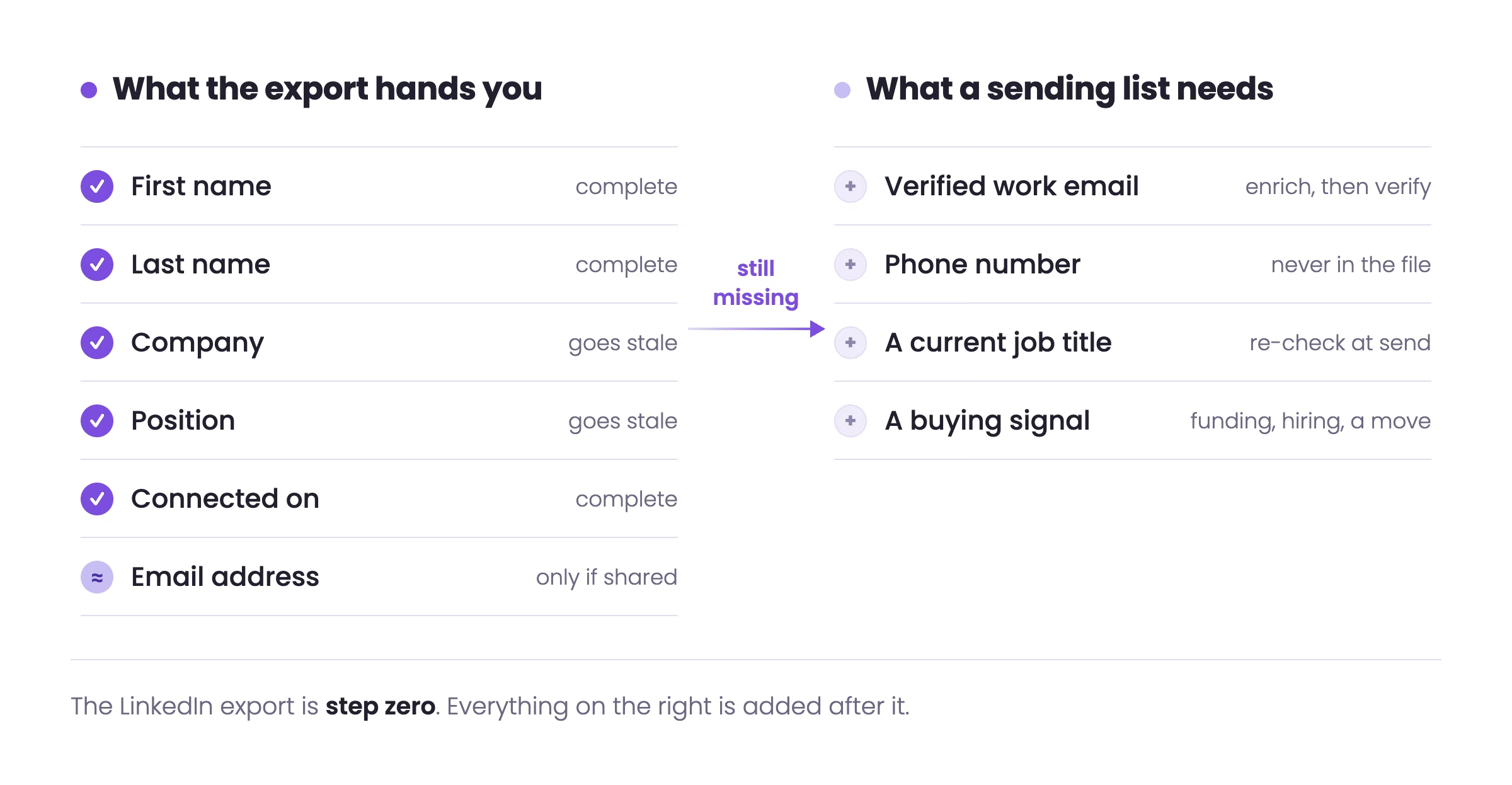
Your exported list is step zero. We run the other ten.
Reachly is a triple-certified outreach agency (Clay, Smartlead, HeyReach) running done-for-you cold email, LinkedIn, and cold calling for B2B teams across APAC, USA, Canada, UK, and ANZ. We enrich the export, build the signal-based list, and run the sequence. Primal hit 4.57x ROI in 6 months. The Great Room closed a $250K contract on the same playbook.
See how Reachly works
FAQ
How do I export my LinkedIn contacts to a CSV?
Go to Settings and Privacy, then Data privacy, then Get a copy of your data. Select Want something in particular, tick Connections, and request the archive. LinkedIn emails a download link, often within about ten minutes. The file is a CSV with names, companies, titles, connect dates, and any emails your connections chose to share.
How do I get a list of all my LinkedIn contacts?
The connections archive is the only complete list. It covers your first-degree connections at the moment you request it. There is no way to pull second-degree contacts or somebody else's network through the official export.
How can I extract my LinkedIn contacts to Excel?
Download the archive, unzip it, and open Connections.csv in Excel, Google Sheets or Numbers. Import it as UTF-8 rather than double-clicking the file if your network includes non-Latin names, which otherwise come through garbled.
What is included in the LinkedIn Connections.csv file?
First name, last name, company, position, the date you connected, and an email address where the connection allowed it to be shared. Phone numbers are not included.
Why are emails missing from my LinkedIn export?
Each connection controls whether their address is visible. LinkedIn only shows email addresses for connections who allowed their connections to see or download them, so the column comes back partly filled. Run the gaps through an email finder and verify the results before any send.
Can I export phone numbers from LinkedIn?
Not through the data export. LinkedIn removed phone numbers from the connections archive. You can check a contact's Contact info section manually, or append mobile numbers in bulk with an enrichment tool, though match rates on B2B mobiles are partial.
Can I export leads from LinkedIn Sales Navigator?
Sales Navigator has no native CSV export. Use a CRM sync on the higher tiers, or a third-party tool such as Wiza, Evaboot or Clay that reads a saved search and returns a CSV with verified emails appended. Build a tight search first, because the export is only as good as the filters behind it.
Can I export followers from a LinkedIn company page?
Not as named contacts. Page admins can export aggregate follower demographics such as job function, seniority, industry and location, but not a list of individual followers with contact details.
How long does a LinkedIn data export take?
The Connections-only file usually arrives by email within about ten minutes. A larger archive that includes posts, messages and activity is processed separately and can take up to 24 hours.
Why is the export option missing from my LinkedIn settings?
Check that you are on a desktop browser rather than the mobile app, and that the account is not new or under a temporary restriction. Both hide or block the request. If the request went through but nothing arrived, confirm which address is set as your primary email.
Is it against LinkedIn's rules to export contacts?
Exporting your own first-degree connections through the official data download is sanctioned by LinkedIn. Scraping profiles you are not connected to, or using automation that breaks LinkedIn's terms, is a different matter and can get an account restricted.
How often should I export my LinkedIn contacts?
Quarterly suits most people. It keeps the backup current without becoming a chore and captures connections added since the last pull. Export right before a campaign so the list reflects your latest network.
How do I import my LinkedIn export into a CRM?
Rename the headers to match your CRM fields, map Position to Job Title, split the file by whether an email exists, and tag the import with a source and date. Enrich the rows without an address before importing them.
What is the best way to use my exported LinkedIn contacts?
Import the list to your CRM, fill missing emails with a verified waterfall, filter to contacts showing a live buying signal, then run a multichannel sequence across cold email, LinkedIn and calling. Sharp lists out-book big ones, which is how the Primal engagement reached 4.57x ROI.
Recommended service
LinkedIn Outreach Agency
Reachly runs signal-led LinkedIn campaigns that open conversations with your ICP, from targeting through follow-up.